SF Wood.
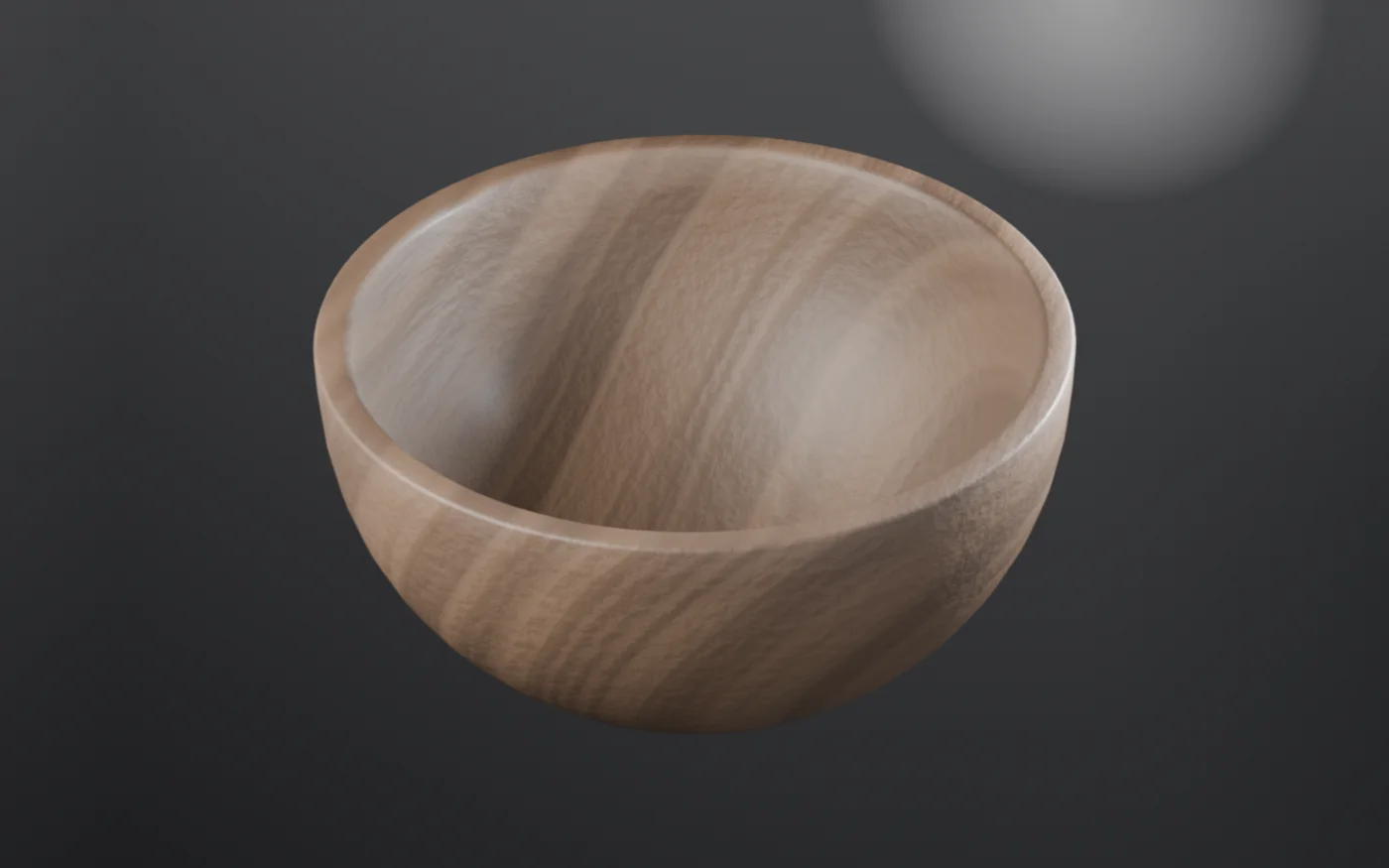
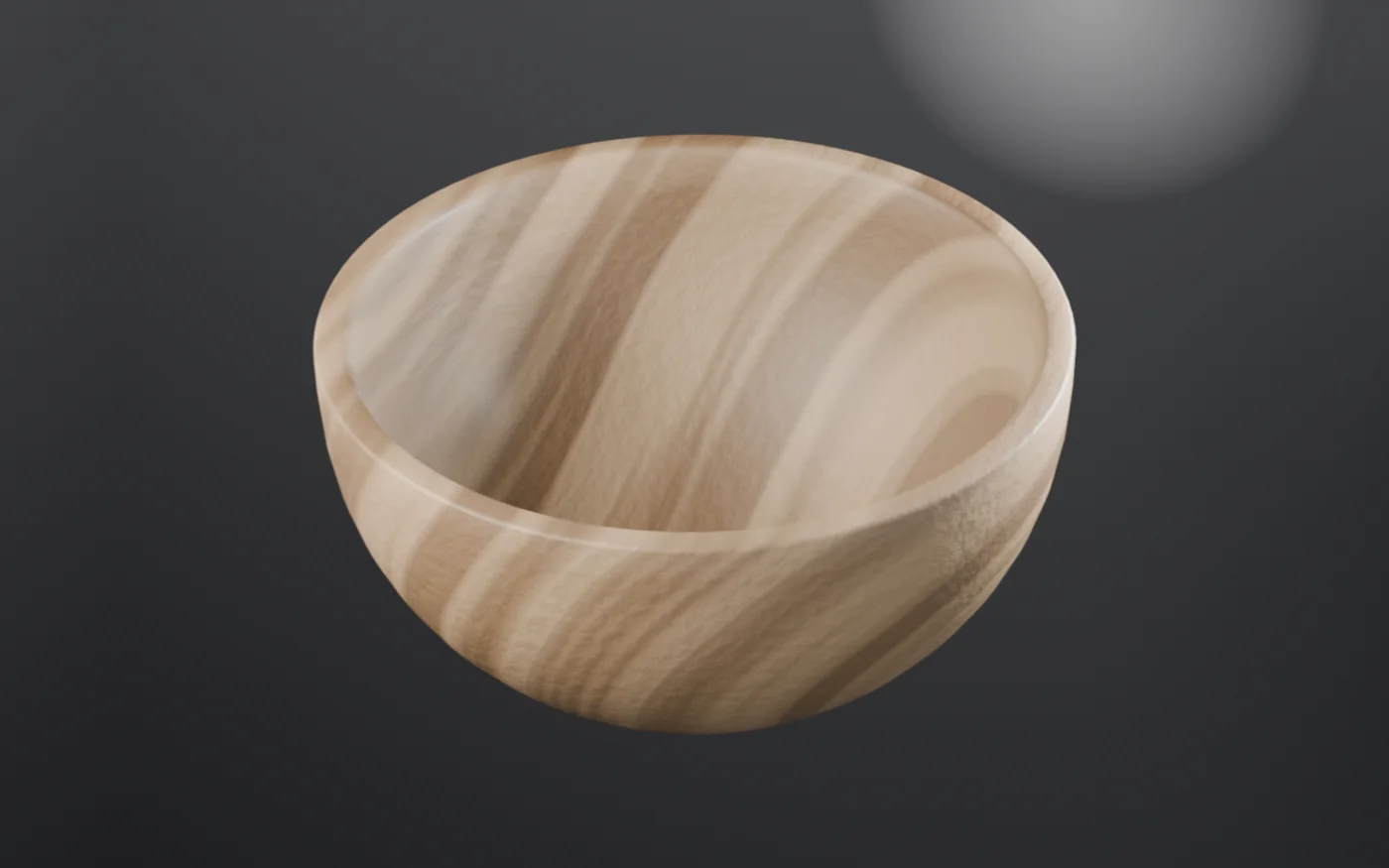
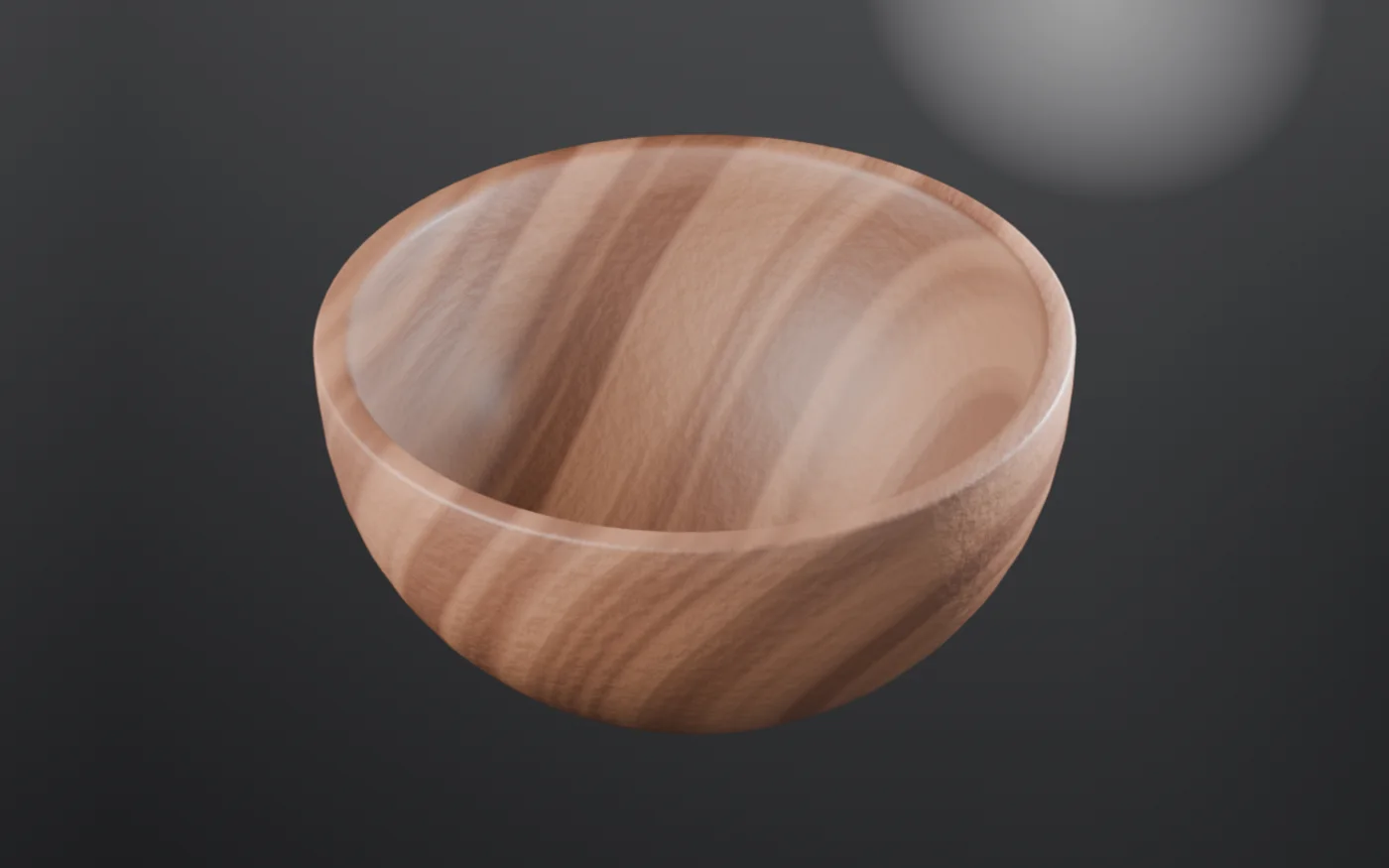
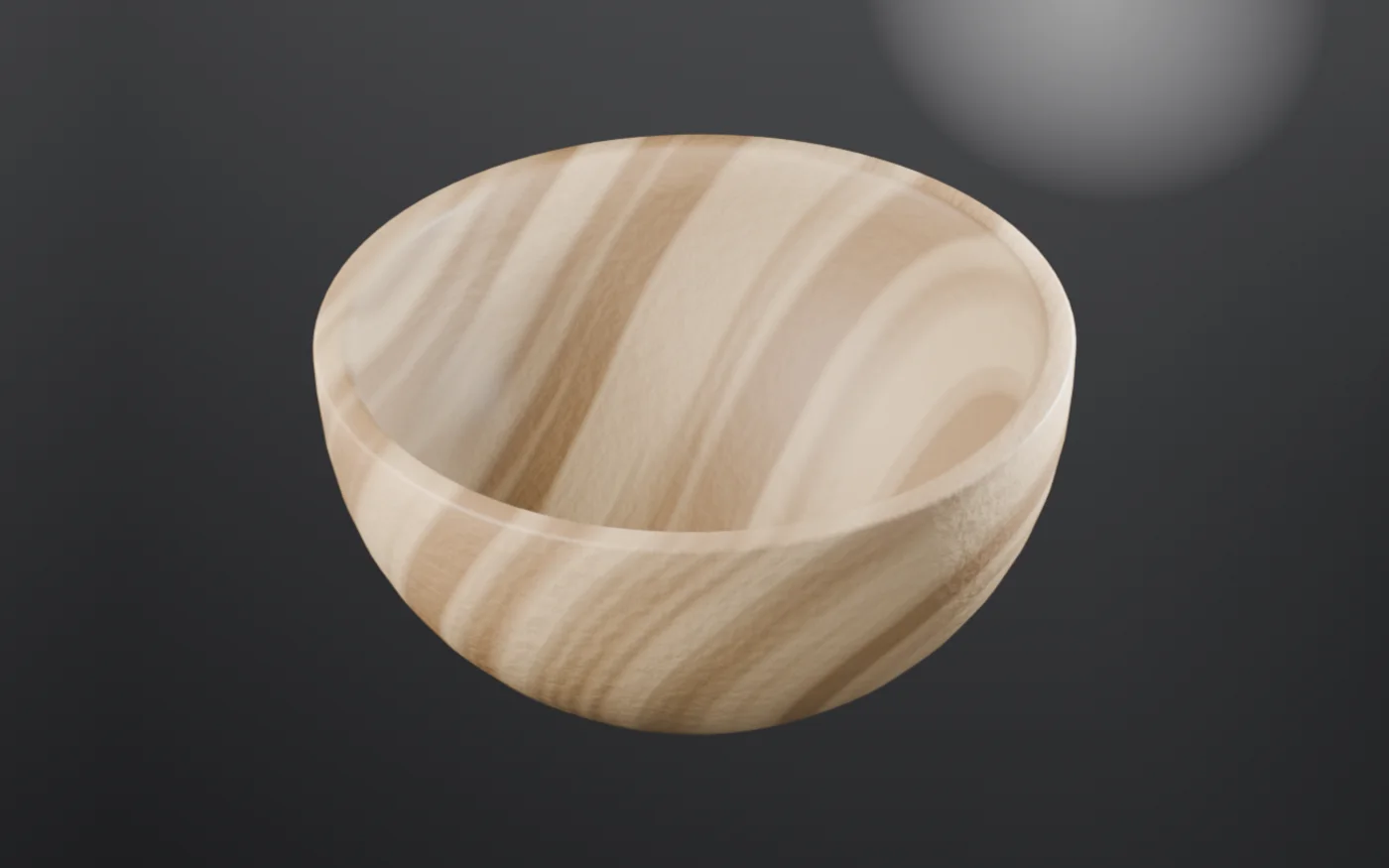
Seven procedural wood materials for Blender — walnut, oak, cherry, pine, ebony, varnished walnut and weathered grey — all built from one generator, so every control is a slider. It's a solid volume, not a texture wrapped round the outside: cut a face and it shows real end grain. Works in EEVEE and Cycles from the same material, with no image textures and no AI.
Start here, not with the material theory. The single most common question is "where did it go?" — the answer is the Asset Browser, and it needs one bit of setup the first time. Do section 01 and the rest is dragging.
01Get it into Blender
Two ways in. The first is the proper one and takes about thirty seconds; the second is the shortcut if you just want the material in this file and don't care about a library.
Unzip it
both routesUnzip SF-Wood-Free-Pack.zip somewhere you'll keep it — not your Downloads folder, since Blender is going to point at this folder from now on. Something like Documents/Blender/Assets/SF-Wood/.
Register it once
route A · recommendedEdit → Preferences → File Paths → Asset Libraries → + (the plus button), then pick the unzipped folder — the folder, not the .blend inside it. Give it a name if you like. Close Preferences; Blender remembers this forever.
Open an Asset Browser
route AChange any editor to Asset Browser (the editor-type dropdown in the corner of any area — the little grid icon), then pick your library from the dropdown at the top-left. You'll see seven bowls under Starting Frame → Wood.
Quickest way to get one: split the timeline at the bottom of the default layout and switch it to Asset Browser. You don't need a fancy workspace.
Or skip all that
route B · fastestFile → Append → browse into SF_Wood_FREE_v1.blend → Material → pick the wood you want. It lands in the current file and you assign it in the Material Properties tab like any other material.
Route B is per-file. Route A means every future project already has them.
02Put it on something
Drag it on
From the Asset Browser, drag a wood straight onto your object in the 3D viewport. That's the whole interaction. Switch the viewport to Material Preview or Rendered (the sphere icons, top-right of the viewport) to see it.
Scale matters
The grain is sized in real-world units, so a 2 m object shows wider rings than a 2 cm one — which is correct, and usually what you want. If your object was modelled at the wrong scale the grain will look off; either fix the scale (Ctrl-A → Scale) or just turn the Scale slider until it reads right.
03The part that makes it worth having
This is the difference between a material you own and an image you downloaded: every control is exposed. Select the object, go to the Shading tab, and click the SF_Wood group node. The whole panel is sliders.
The grain
- Ring Scale
- Ring Contrast
- Pith Offset
- Log Stretch
- Fibre Stretch
- Fibre Roughness
Pith Offset is the fun one — it moves the centre of the log relative to your object, which changes how the rings arc across a face. Small changes read as "a different board".
Knots
- Knot Amount
- Knot Size
- Knot Depth
Knots deflect the surrounding grain the way a real knot does, rather than being a dark spot painted on top. Turn Knot Amount to 0 for clean, furniture-grade stock.
Colour & finish
- Base Colour
- Ring Colour
- Roughness
- Coat Weight
- Coat Roughness
- Colour Variation
Raise Coat Weight for a varnish or lacquer. That plus a colour change is most of how the seven presets differ from each other — so making an eighth is a two-minute job.
Every slider reads higher = more. No inverted controls, no "0.5 is neutral" surprises. If you want more of a thing, turn it up.
04The seven
Same bowl, same light, same generator — only the numbers change.
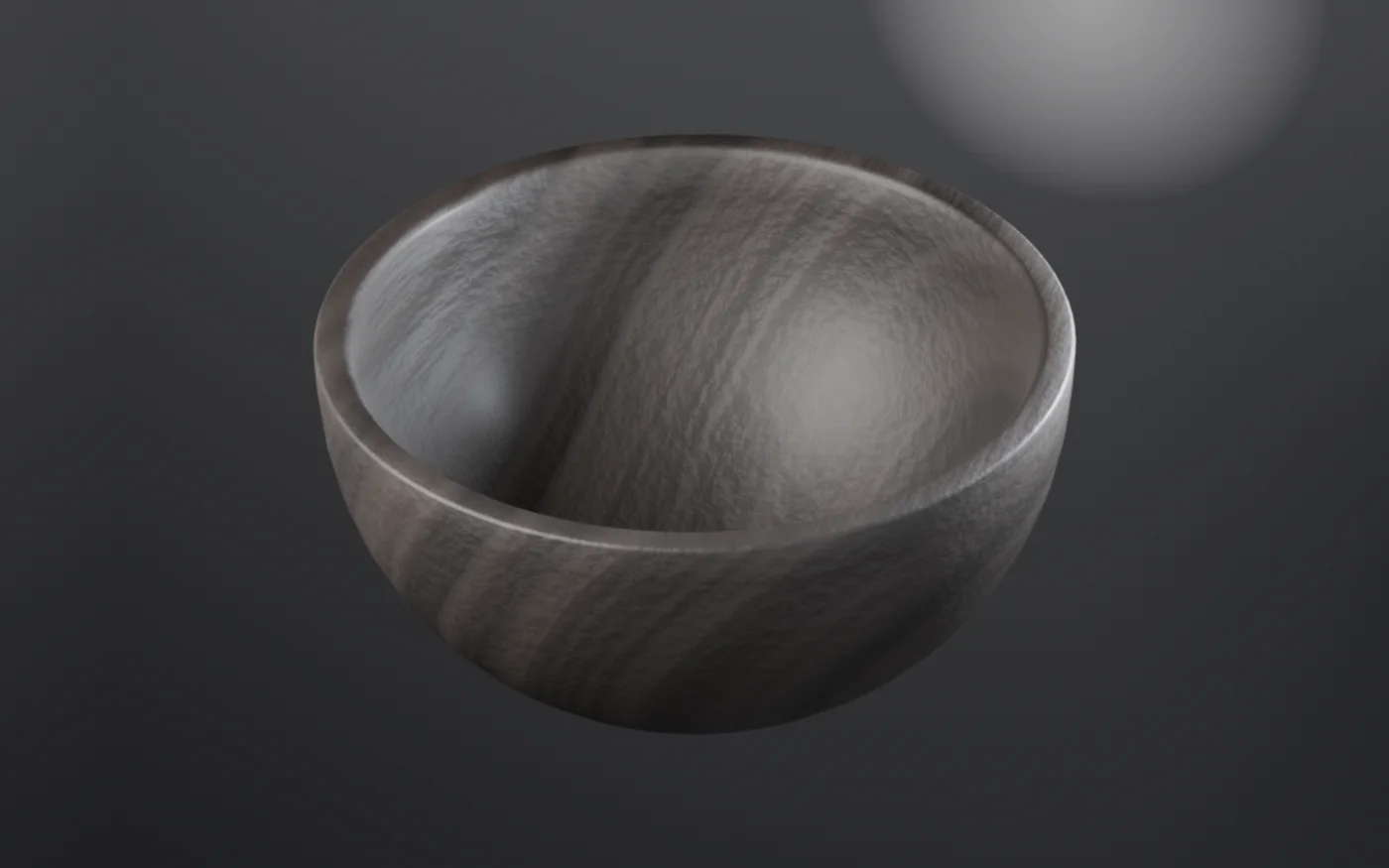
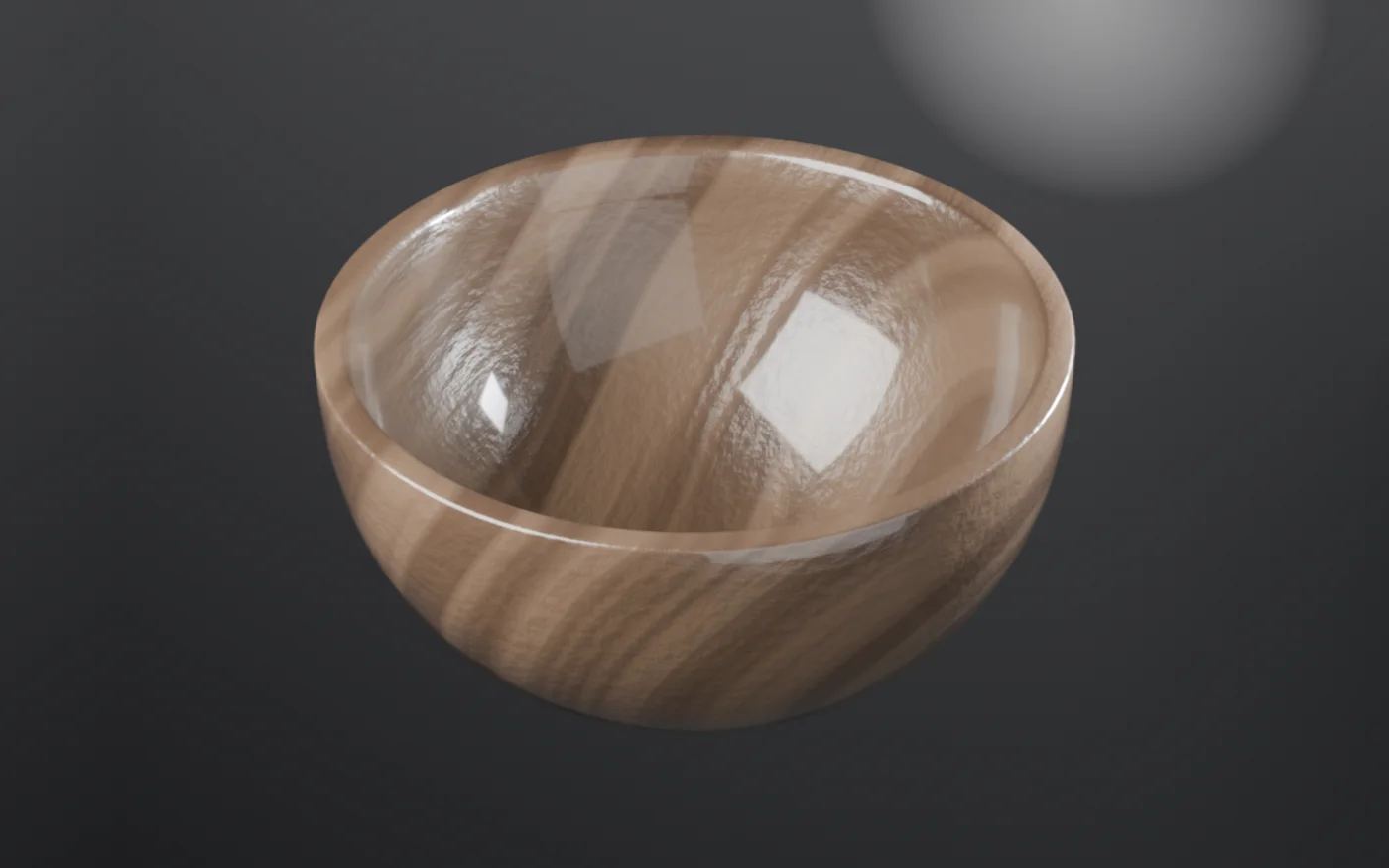
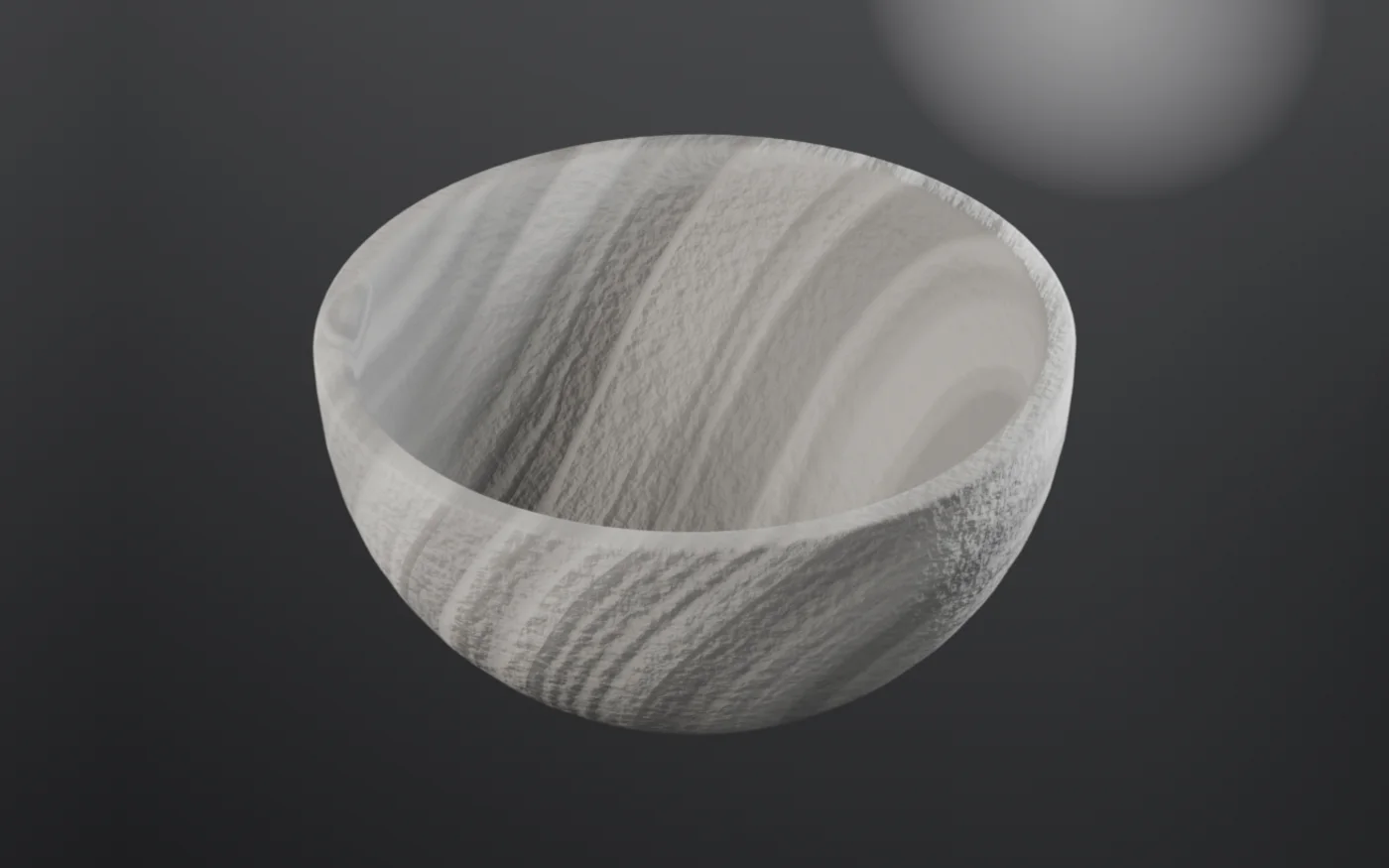
05Wear, included on purpose
The pack also carries a shared node group called SF_Imperfections — scratches, dust, smudges and micro-surface. It's in the free build deliberately: clean wood is easy, and wear is the part that actually teaches you what procedural materials can do. Open any wood in the Shading tab and you'll find it in the graph; the masks are reusable on anything, not just these woods.
06Good to know
Blender version
Needs Blender 5.2 or newer — the file is saved by 5.2 and will not open in 4.x, including 4.2 LTS. Built and verified in 5.2.
Both engines
One material, identical in EEVEE and Cycles — nothing in the graph is Cycles-only, so there's no second version to keep track of.
Nothing to trust us with
100% procedural — no image textures, no scans, no AI, nothing that phones home. That's also why the whole pack is under two megabytes.
What you can do with it
Render whatever you like, commercially or not, and sell the result. The only thing off the table is repackaging the materials themselves and redistributing them as your own pack.
07Something not working?
The questions people actually hit. Tap one to open it.
How do I get the materials into my scene?
Route A, recommended: unzip the pack, then Edit → Preferences → File Paths → Asset Libraries → + and point it at the unzipped folder. Open an Asset Browser, pick the library, and drag a wood onto your object from Starting Frame → Wood.
Route B, fastest for one file: File → Append → SF_Wood_FREE_v1.blend → Material → pick the one you want.
What's the minimum Blender version?
Blender 5.2 or newer. The file is saved by 5.2 and will not open in 4.x, including 4.2 LTS — that's a Blender file-format change, not something the pack can work around.
Verified directly: the pack opens cleanly in Blender 5.2.2 with all seven woods and the SF_Imperfections group present, and the same file fails to open in Blender 4.2 with a "not a blend file" error.
The grain looks too tight, too wide, or barely visible.
The grain is sized in real-world units, so a 2 m object shows wider rings than a 2 cm one. If your object was modelled at the wrong scale, the grain will look off — either apply the object's scale (Ctrl-A → Scale) or turn the material's own Scale slider until it reads right.
Does this work in EEVEE, or do I need Cycles?
Both. SF Wood works in EEVEE and Cycles from the same material — nothing in the node graph is Cycles-only, so there's no second version to keep track of.
Can I use this in client work, or sell what I render with it?
Yes. The pack is free to use, personal or commercial — render whatever you like and sell the result. The only thing off the table is repackaging the materials themselves and redistributing them as your own pack.
I lost my download link.
SF Wood is free and email-gated, not a purchase — go back to the tool page and enter your email again for a fresh download link.
Still stuck? Tell us.
A real person reads every message. Include these and we can usually find it on the first reply:
- your Blender version (Help → About)
- your render engine — EEVEE or Cycles
- what you did, and what happened instead — a screenshot is perfect
$Get SF Wood
SF Wood is free.
One email unlocks it — which also puts you on the newsletter, where new tools and packs get announced. Then it's yours, on your machine, forever.
Starting Frame. — the guide · startingframe.com
SF Wood · seven woods from one generator, every control a slider.